
Karsten Lehmann 7 August 2026 09:00:00
A few months ago TeamSketchbook was a neat little sample app: a multi-page sketchbook you drew in with a pen, built to show what MindooDB’s stroke-level merging could do. Then we started using it for our own work, and real work asks awkward questions. Can I mark up this PDF? Can I show this to a room without drawing all over it? Can I see what changed between last week’s design proposal and today’s? Can I give the client something that proves they approved this version?
The answer to all four is now yes. TeamSketchbook has been rebuilt around them, and it has its own home: teamsketchbook.com.
Two shapes for two kinds of thinking
The first thing you choose is what kind of document you want. A sketchbook is a book of fixed pages with real paper sizes - A4 and up, portrait or landscape, eight paper types from blank and squared through Cornell layouts to music staves. It is the right shape when the output matters: worksheets, forms, notes, imported documents, anything you will print or export at 1:1.
An infinite canvas is one unbounded surface that grows in every direction. Pan, zoom, fit everything to screen. It is the right shape for a brainstorm or a mind map, where page breaks are just in the way.
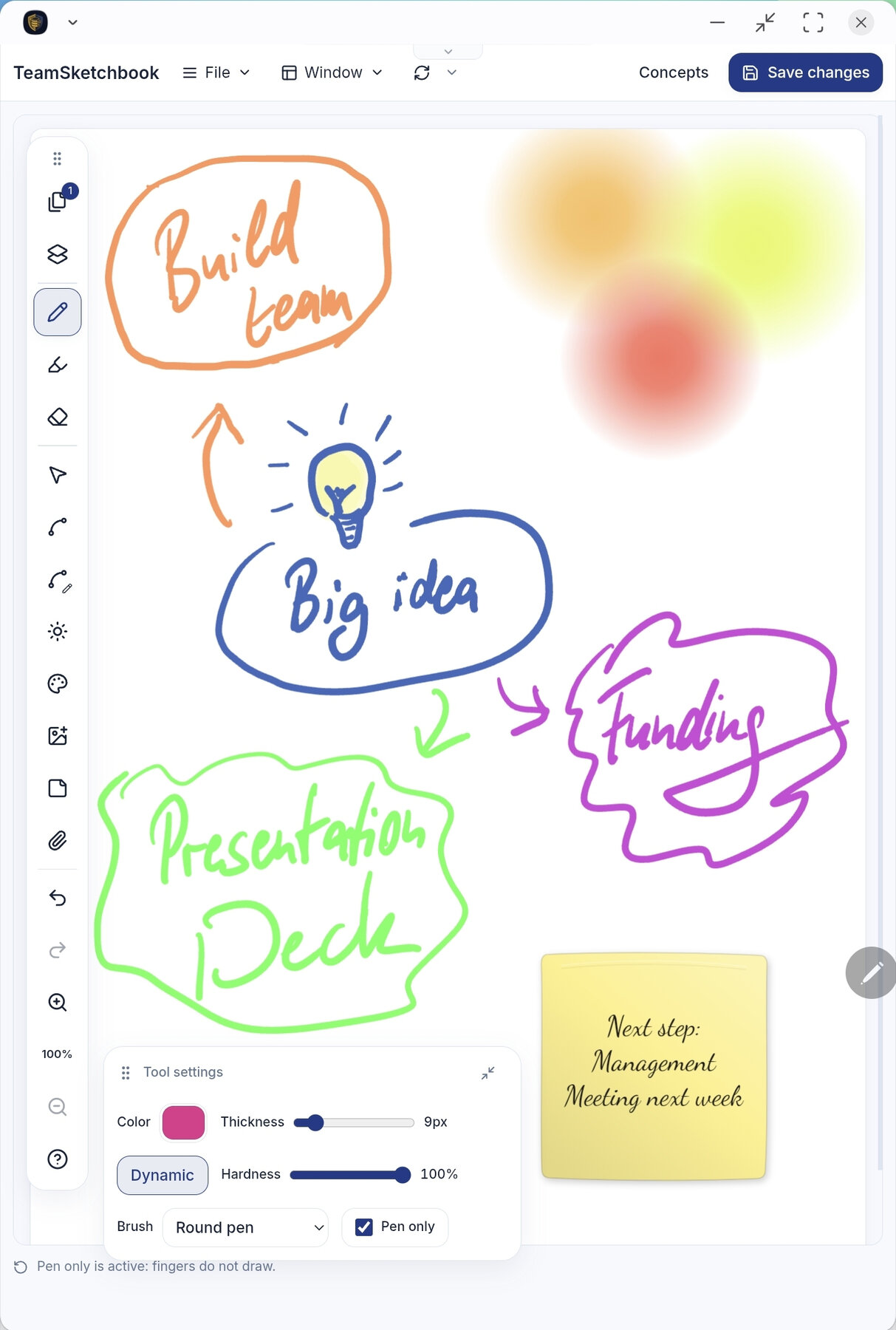
Sticky notes deserve a mention of their own, because they are more than coloured rectangles. Drop a sticky, type a title, then switch to the pen - the strokes you draw attach to that note. Move the note and the ink goes with it. Recolour the selection and the text and the attached strokes change together. It turns a messy wall of thoughts into clusters you can actually rearrange.
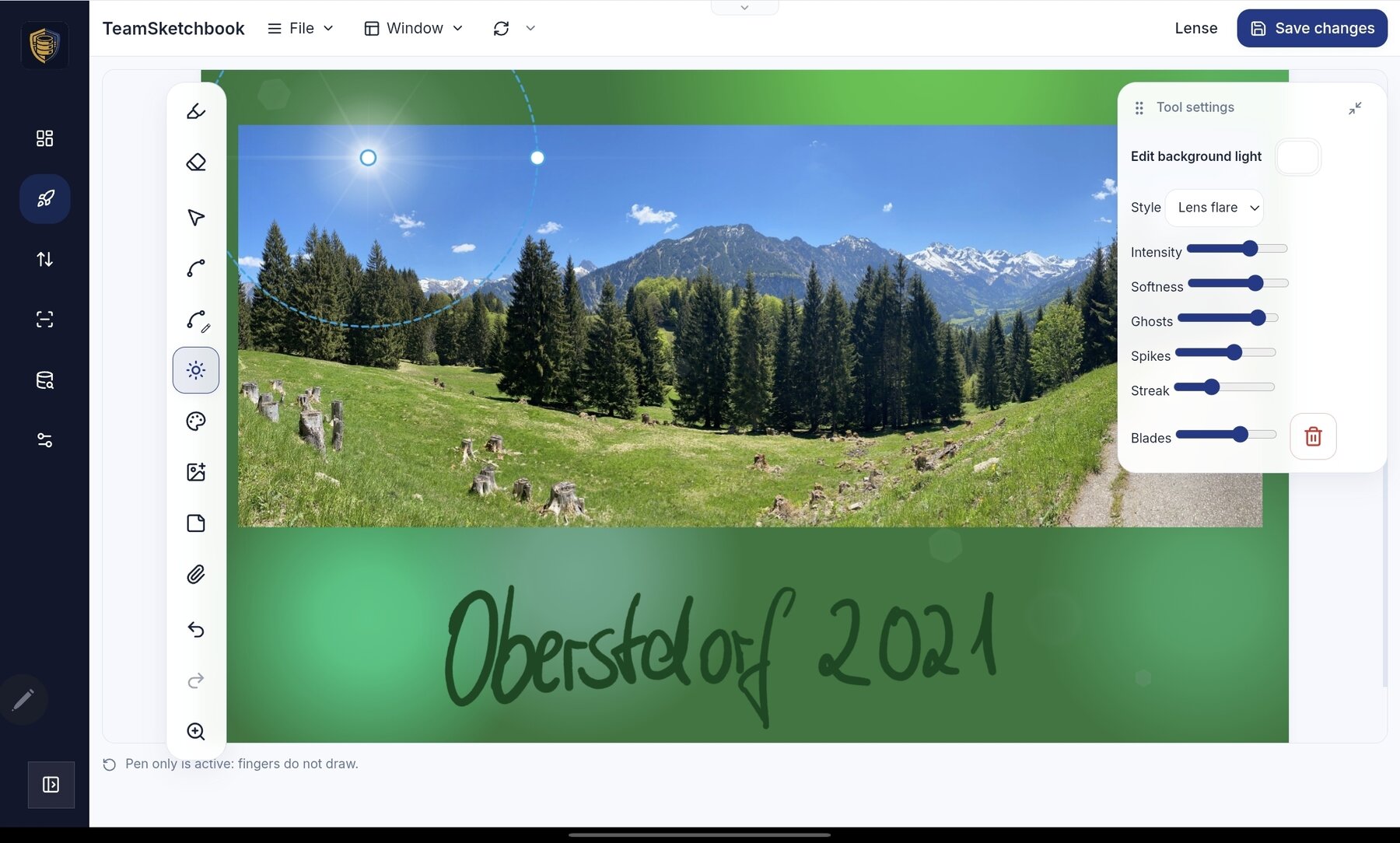
The toolbox around all of this grew too: pressure-sensitive pens and translucent markers with adjustable edge hardness, editable splines you reshape by dragging knots, named layers, a stroke-attached eraser, image insertion with paint-over selection, and per-page file attachments. And because we could not resist, lens flares - place a light on a photo and get spikes, streak and aperture ghosts sitting above the image, with the ghost count, blade count and streak length all under your control. They survive SVG export, which was the genuinely hard part.
Bring documents in, mark them up
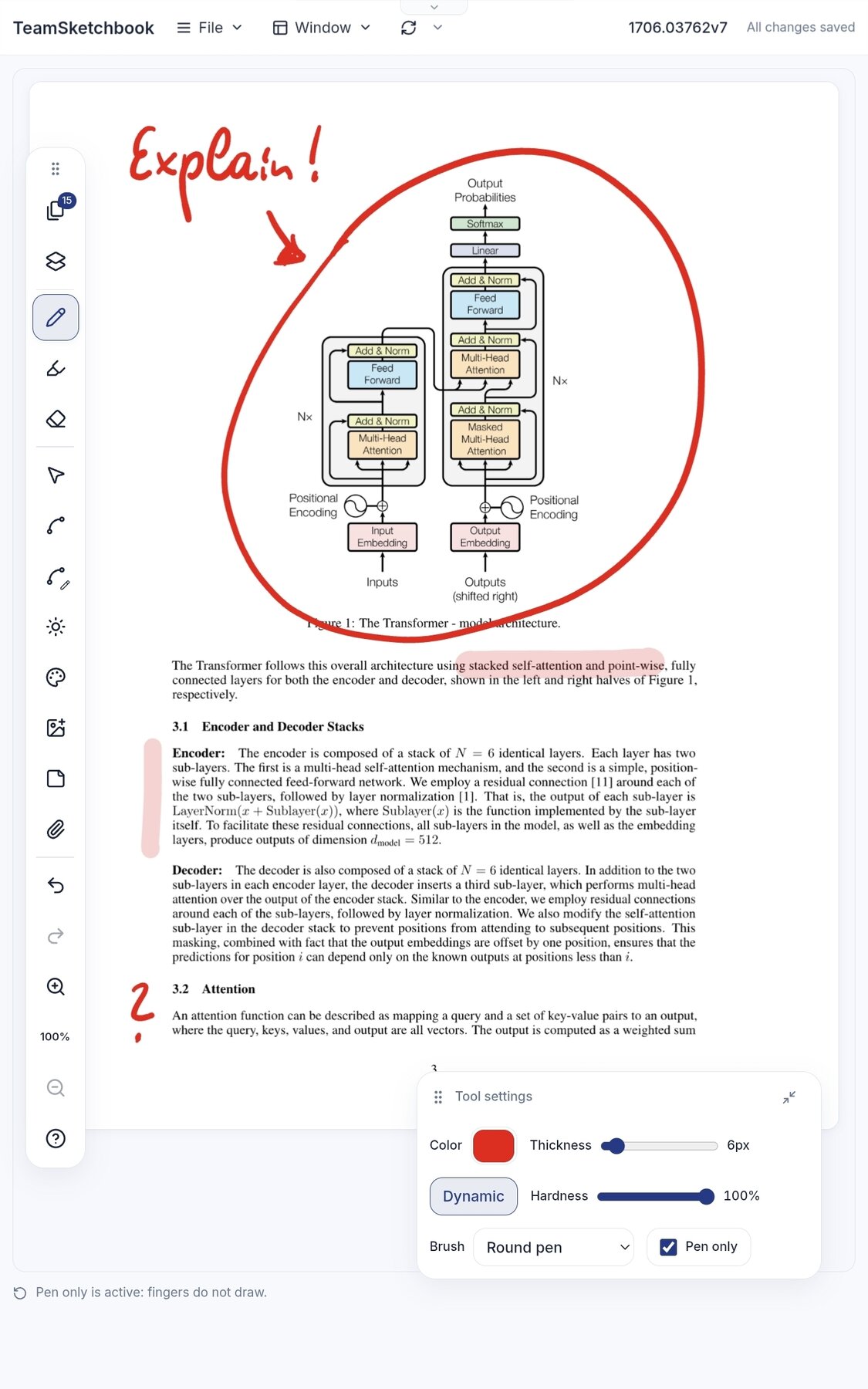
File ▸ Import takes a PDF or a GoodNotes notebook, shows you page previews, and lets you pick exactly which pages to bring across. Each one becomes a sketch page with the document as its background, ready to annotate with the full toolbox on top.
The GoodNotes import is the one I am quietly proud of, because it does not flatten your notes into pictures. Pen, ballpoint, pencil and highlighter come across as editable strokes with their colour and pressure intact, so imported handwriting can be recoloured, erased, moved and selected exactly like ink you drew in TeamSketchbook. Each page keeps the paper it was written on.
Files are opened locally. Nothing is fetched from an arbitrary URL on your behalf, and no part of the document leaves your device unencrypted.
Present without marking
Switch to Presentation mode from the Window menu and the book becomes the deck. Swipe or use the arrow keys to flip pages with a smooth animation, or pan and pinch around a canvas. All the tools disappear.
The important part is the laser pointer: a glowing highlight with a short trail that lets you point at something without drawing on it. Anyone who has presented student work or a client mockup and left a stray pen mark on it knows why this matters. Strokes and images can carry hyperlinks that open on tap, embedded files preview inline - video, audio, images, Word documents - and live edits from collaborators keep appearing while you talk.
Compare what changed
Assign any two pages to slots ① and ②. Same book or two different open books; today’s draft or a historical revision. Then open Compare and pick your view: side by side, with the reference on the left and the editable current version on the right, or a reveal slider you drag across two aligned pages to catch the difference at a glance.
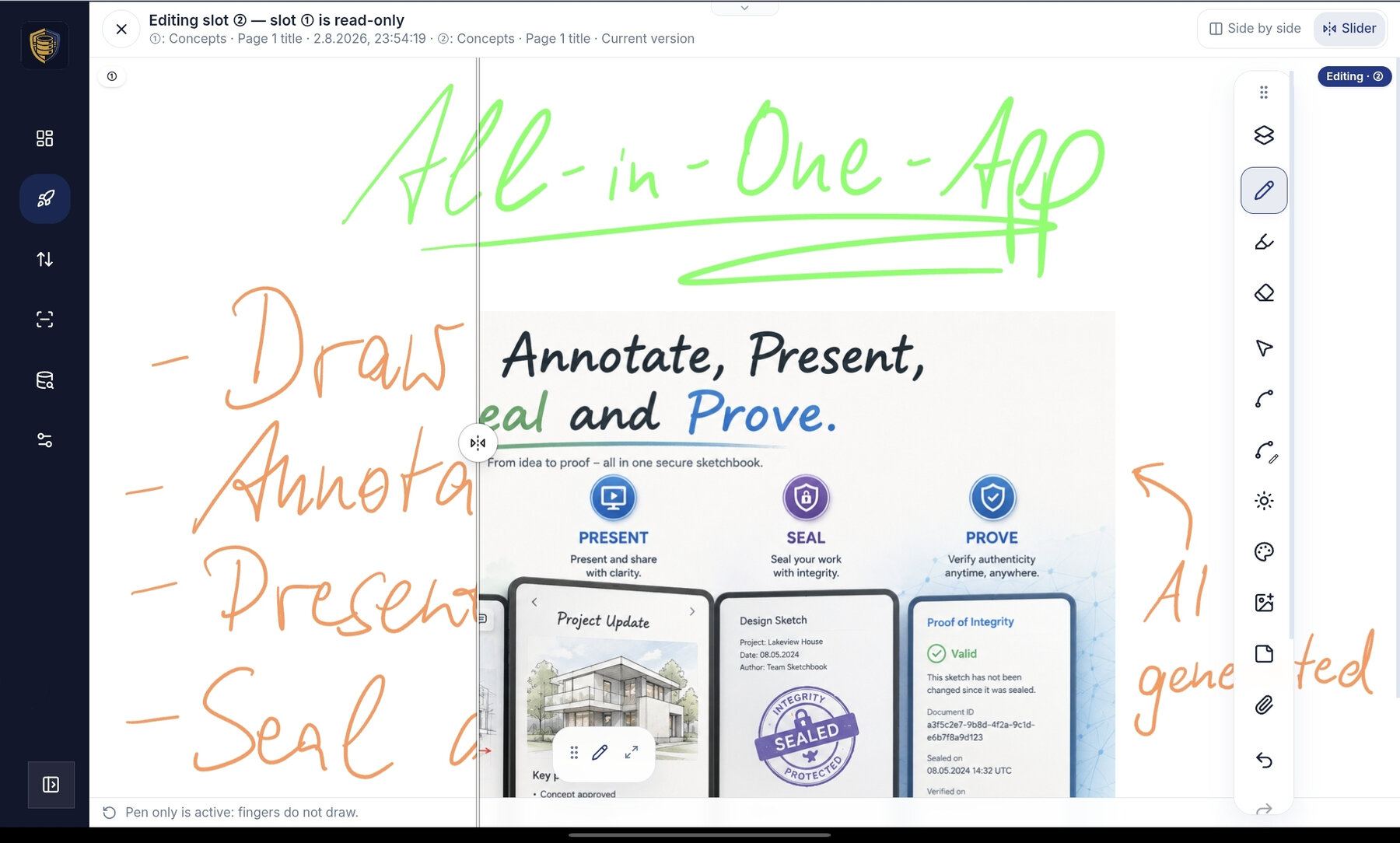
Slot ① is always read-only, so a reference revision cannot be edited by accident.
See how the merge actually happened
Underneath all of this is the property that made TeamSketchbook worth building on MindooDB in the first place: strokes are stored as fine-grained operations, not as flattened pictures, so two people drawing on the same page at the same time get merged rather than one of them winning.
The new change graph makes that visible. It shows the concurrent edits from each device - an Android tablet here, an iPhone there - and how they folded into one page history, with each node representing what that device saw locally when it applied its change.
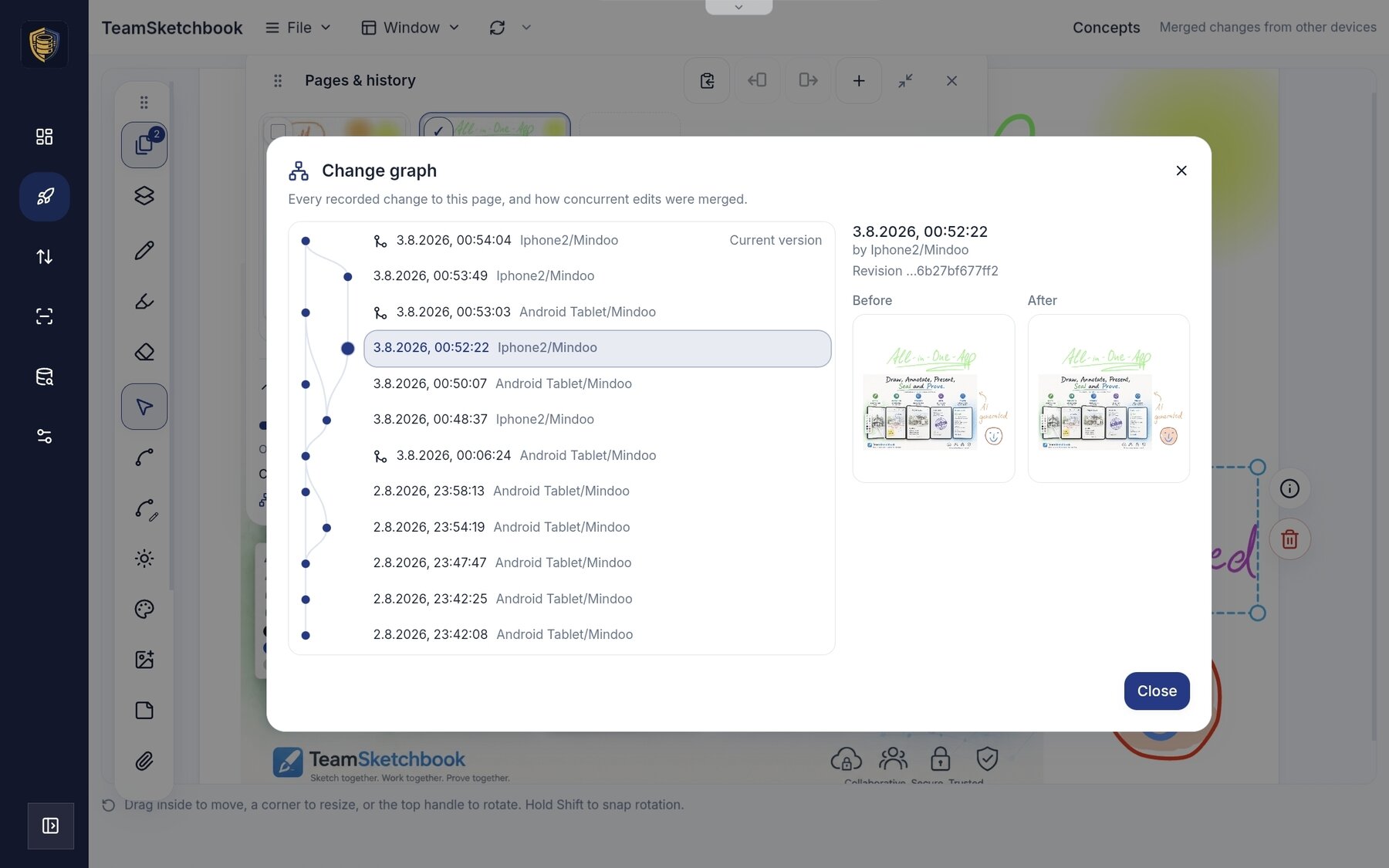
Because MindooDB storage is append-only, every page keeps its complete history from the very first stroke. You can open any past state, copy elements out of it into your current draft, or recover content you erased. “Undo, but from last Tuesday” is simply available.
Seal what you agreed
This is the biggest addition, and the reason the product site has a whole page about it.
Mark up the thing you are agreeing on - the acceptance notes on a site photo, the corrections on a plan - and then seal it. Sealing captures that exact content, not “the current version”: your identity key signs it, and an independent RFC 3161 timestamp authority locks the time, so the date does not rest on your clock or on ours. Several people can co-sign the same approval, and someone can counter-sign an existing seal later to record that they reviewed and endorsed it.
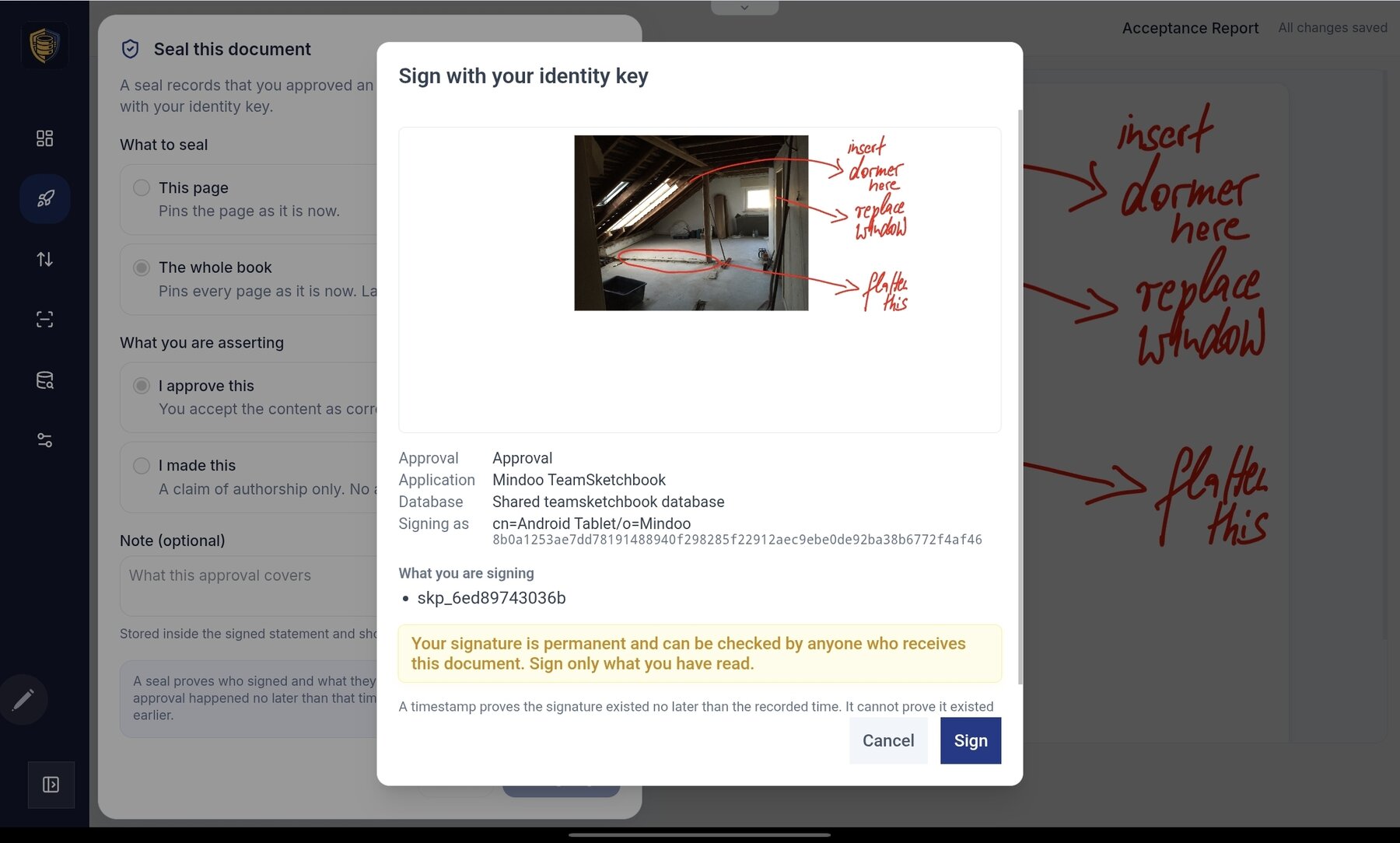
Seals appear as milestones on the revision timeline, so you can scrub back to precisely the state that was approved. And you can export one as evidence: a single ZIP containing the drawing, the signatures, the timestamps and a self-contained verifier that runs offline in a browser. The recipient needs no account, no keys from you and no network.
What I like most about that verifier is what it refuses to do. It reports each claim separately - whether the content is unaltered, whether every signature is valid, what the timestamp actually proves - and it states plainly which claims it could not check, such as who a given key really belongs to. A tool that only ever says “valid” is not evidence.
For processes that need it, the timestamping authority is a configuration setting and can point at an eIDAS-qualified provider instead.
Print a canvas the size of a wall
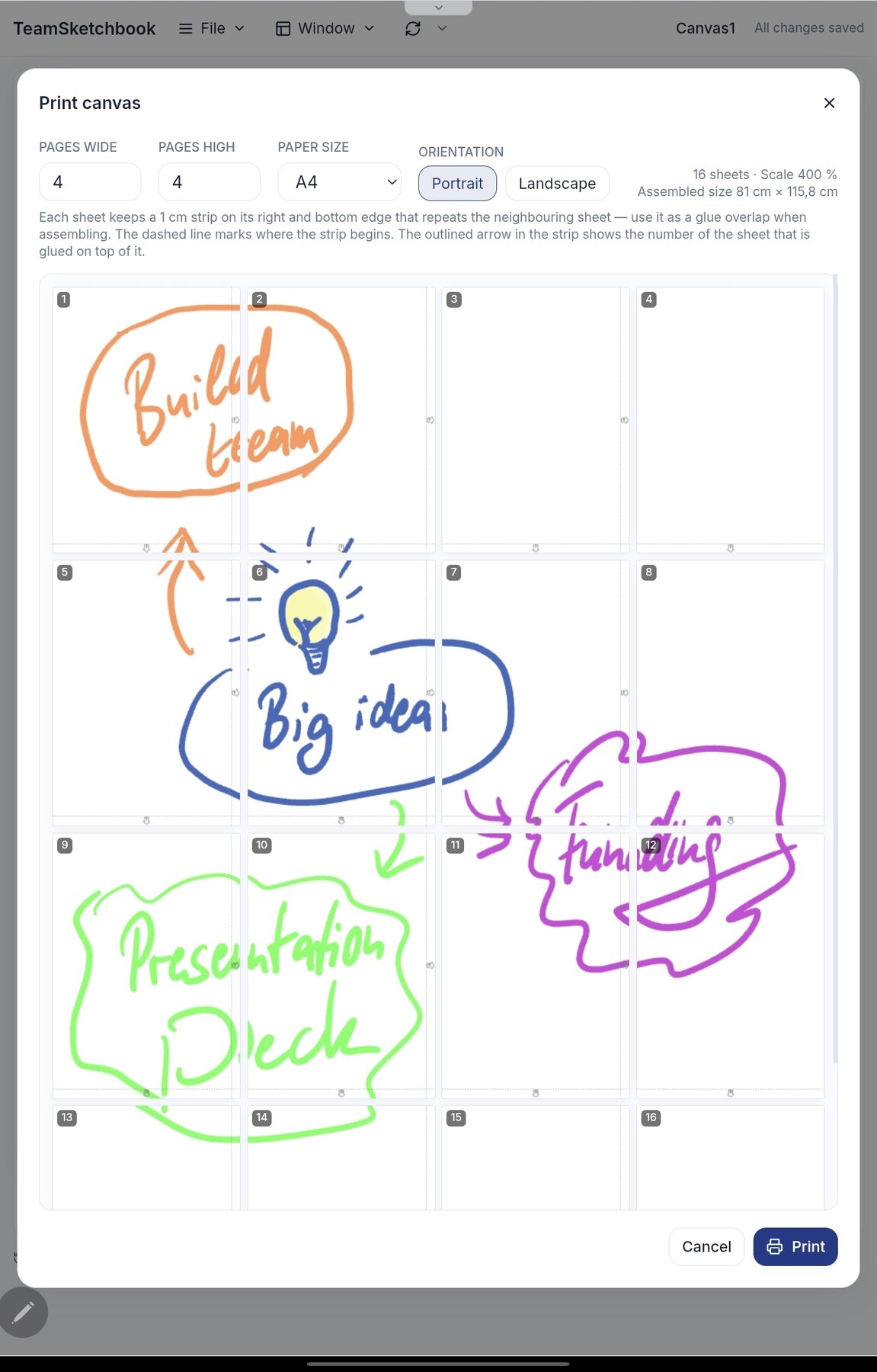
A small feature with a disproportionate amount of delight in it: the print dialog can tile an infinite canvas across standard sheets - A4, A3 or US Letter - with a live preview and a sheet count. Each sheet repeats a 1 cm strip of its neighbour and small arrows show which sheet glues on top of which, so the seams line up when you assemble it. Sixteen A4 sheets at 400% make a poster roughly 81 by 116 cm.
Faster, on more devices
Alongside the features went a large round of performance work. A sketchbook is one small document listing its pages, and each page is its own document, so opening a book does not load every page at once - a fat sketchbook stays as quick as a fresh one. Rendering, hit-testing and the selection paths were reworked so that pages heavy with strokes and images stay responsive while you draw on them.
It runs in any modern browser and installs as a PWA, on Windows, macOS, Linux, tablets and phones. It is built first for tablets with a stylus - Apple Pencil, Samsung S-Pen - with a pen-only mode so your palm can rest on the screen, but a mouse or a finger works fine. And it is genuinely offline-first: draw in a basement classroom or on a site with no signal, and everything queues locally and merges in when you reconnect. Eight languages, as with the rest of Haven.
What it costs
The app itself is free. Run your own MindooDB server, or work entirely local-first and offline, at no cost.
If you would rather not host anything, MindooDB Cloud gives you a private, end-to-end encrypted home for TeamSketchbook and every other Haven app at 7.99 EUR per user per month or 79.99 EUR per year including VAT, with team packages from 349.99 EUR for five users per year and 200 GB of storage per person. The same subscription covers Teacher’s Desk, TeamGrid, TeamEdit and Vega - see the pricing page.
How to try it
Open Haven, create your identity and a tenant, go to Applications, and install Mindoo TeamSketchbook from the App Store. It takes about a minute, and there is nothing to pay to find out whether you like it.
The full tour, with screenshots of everything above: