
Karsten Lehmann 29 July 2026 12:00:00
Most of what we have written on this blog over the past months has been about the platform: how attachments are stored, how a document scanner ended up in the SDK, how two people can co-author a Word file without anyone’s server reading it. Today is about a product built on all of that, and it is now available: Mindoo Teacher’s Desk.
It did not start on a drawing board. It started with my wife.
None of the tools fitted her day
She is a teacher. Over the years she tried the usual programs, and not one of them covered her working day. This one was a good grade book, that one a decent calendar, the third a reasonable place to keep materials. Covering everything would have meant running three tools in parallel and keeping them in sync by hand - which, in practice, means keeping them in sync in your head.
On top of that came a discomfort many teachers know and few software vendors take seriously: typing children’s names, their grades and observations about their development into a cloud that somebody else can read. Not “somebody malicious”. Just somebody - an operator, an administrator, a subprocessor, whoever inherits the company in three years.
The account belonged to the school, not to her
Then she was transferred to another school, and the cloud access stayed behind. The account had belonged to the school, not to her. There was very little time to get her data out: years of materials, notes and preparation, pulled out alongside her regular teaching before the access ended.
Once you have been through that, you think twice about keeping a teaching library in a system that hangs off your employer. That is why Teacher’s Desk is tied to the teacher and not to the school, and why every last piece of content can be exported at any time - a data checkout that writes your core data, calendar, timetable, planning, materials, classes, grades, conversation records and notes into readable files and hands you a ZIP.
Handwriting had to be a first-class citizen
She works with a tablet and a pen. So handwritten notes and annotated documents had to feel as natural as typed text, and they had to be on every device without her having to think about transfers, exports or “which version is the current one”. Today she uses Teacher’s Desk on an iPad, an iPhone, a Microsoft Surface and an iMac at home, and the state is simply the same everywhere.
The Notes area is where both halves of that meet. A note can be a sketchbook, drawn with a stylus on a ruled or blank page, with several pages per note, a full drawing toolbar down the left edge and a page-and-version panel that lets you reorder pages or go back to an earlier state of the drawing.
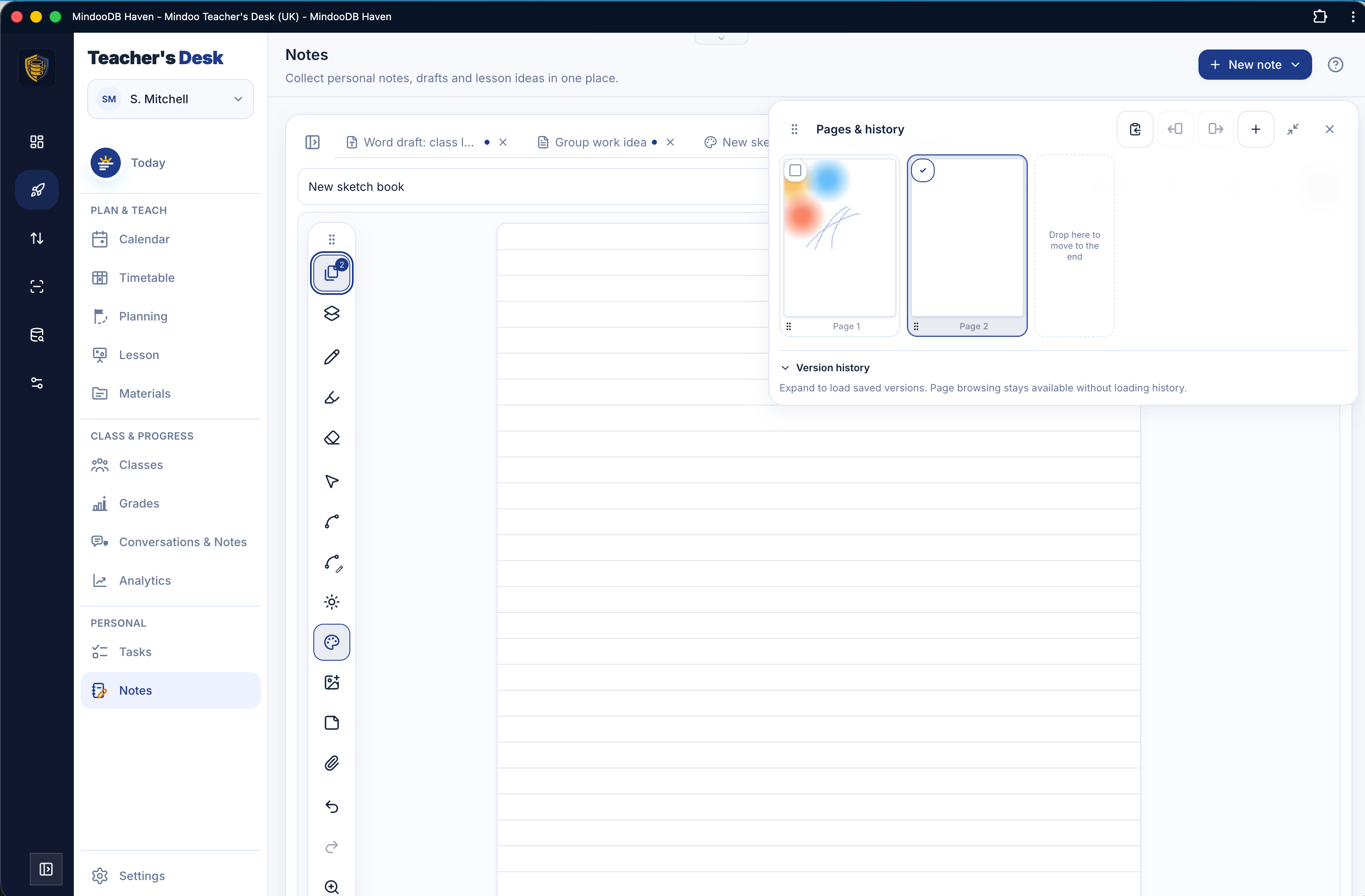
Or the note can be a proper Word document, opened in the same Notes screen next to the drawn and typed ones, with several notes open as tabs at once.
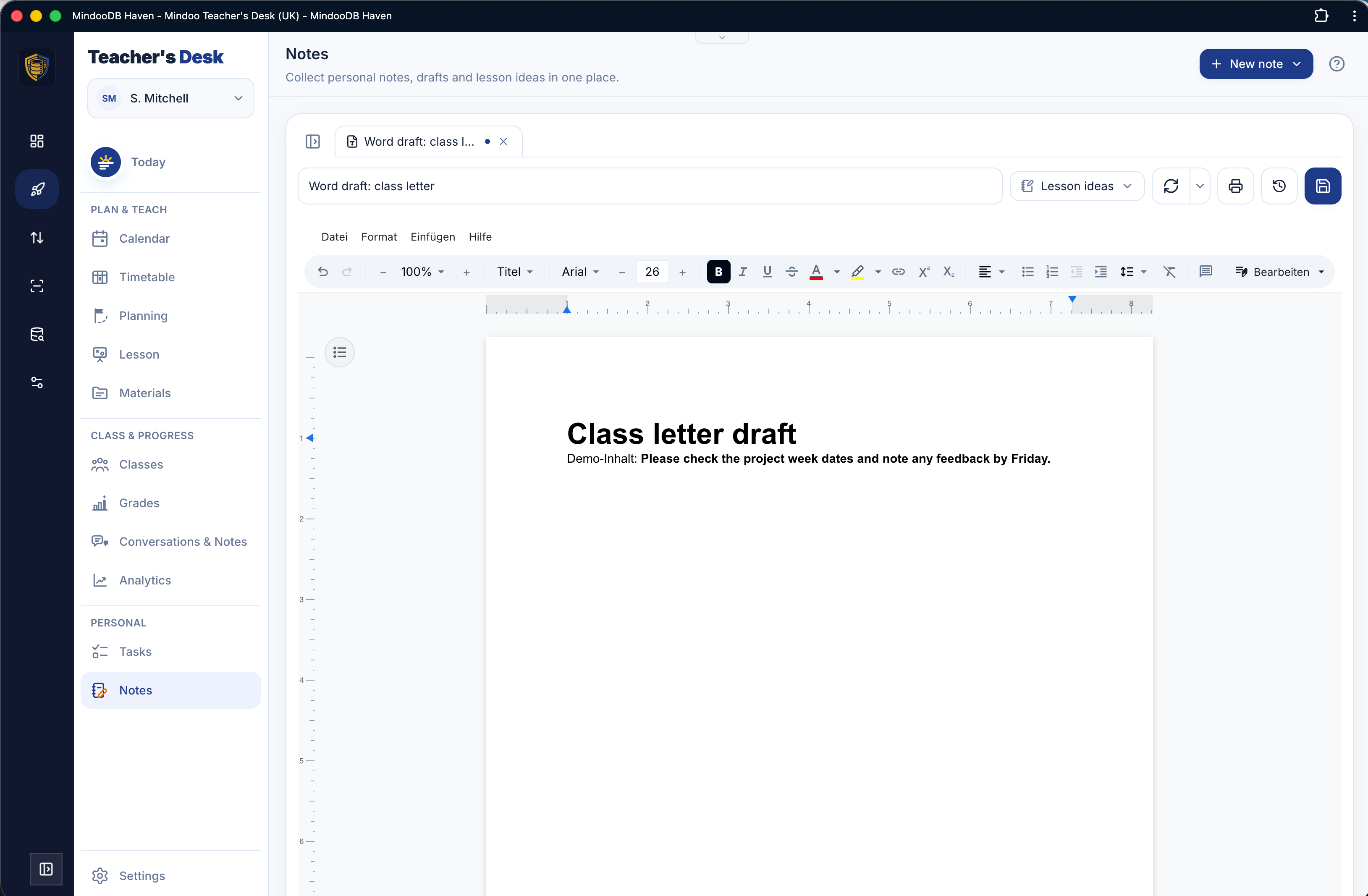
That second one is what pushed the underlying document editing further. Teacher’s Desk uses real Word/.docx documents in several places - notes, conversation records, materials - built on the collaborative editor we introduced with TeamEdit in May. Since then we forked that editor and started adding features to it ourselves rather than waiting on anyone else’s roadmap. The first big one, built specifically for this app, is editing on phones and tablets: a teacher standing in a classroom with a tablet needs to write and correct a document right there, not back at a desk.
What it actually does
Teacher’s Desk covers twelve areas that most teachers otherwise scatter across a calendar, a grade book, a folder tree, a spreadsheet and a pile of loose notes - and it covers them as one flow, so nothing is entered twice.
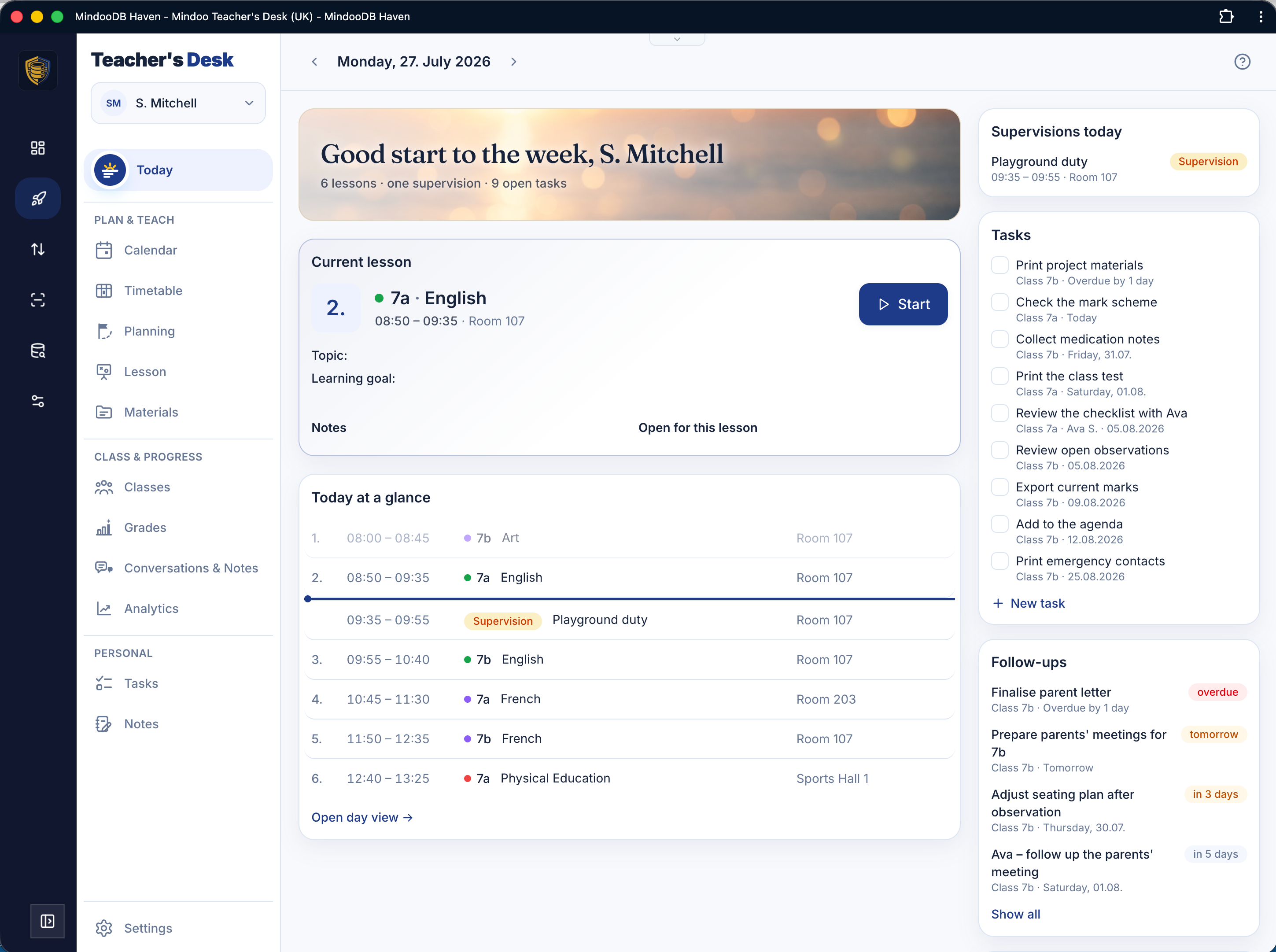
It opens on Today: the next lesson with its topic, material and room, the shape of the rest of the day, the tasks that are due, the follow-ups you promised somebody. From there:
- The timetable is set up once as a weekly rule, including A/B weeks. The concrete lessons appear from it automatically, holidays skipped, with no manual generation step.
- Everything with a date flows into one calendar - lessons, appointments, school holidays, due tasks, planned conversations - in year, month, week and day views.
- Planning works the way teachers actually think: a topic as a scheme of work spread across several real dates in a few clicks, reusable next year.
- The Lesson view carries you from preparation through delivery to documentation on one screen: phases with a clock that shows whether you are keeping to time, board work as a photograph or a hand-drawn sketch, the lesson’s materials one tap away, quick observations, and what was covered plus homework afterwards.
- Materials is the library that has to survive a career, not a school year. Files, links, texts and sketches, tagged by subject, type and year - and findable by full text, including the recognised text inside scanned or photographed worksheets. The document scanner in Haven is what gets the paper in there in the first place: point a phone at a worksheet, press one button.
- Classes holds everything about a teaching group: contacts for learners and parents, observations, the class register, custom lists (trip contributions, photo consent, who returned which form) with the totals adding up for you, and a drag-and-drop seating plan with ready-made row, pair and U-shape layouts that you can print for a substitute.
- Grades does not impose a scheme. You define the assessment structure, the weightings, the grade boundaries from points or errors, and how the terms combine; the app does the transparent arithmetic and suggests a report grade you are always free to override.
- Conversations & records prepare, record and follow up parent meetings and learning-progress conversations, with templates, agreements and follow-ups so nothing you promised quietly disappears.
- Analytics turns everyday entries into a picture of the term - lessons taught, tests written, conversations held - including a working-time analysis that counts the correcting and preparing that usually goes uncounted. Making overload visible early is a use of data I am genuinely happy to have built.
- Tasks and Notes round it off: multi-step projects like organising a class trip with templates you reuse each year, and a personal notebook for typed, written and drawn notes.
There is one small feature I want to call out separately, because it is the kind of thing you only think of if you have watched a lesson: a lesson focus mode that hides privacy-relevant content - learners’ names, grades - so the app can go on the classroom projector without exposing anyone’s data to the whole room.
Eight languages, thirteen grading systems
Teacher’s Desk ships fully localised in eight languages - English, German, French, Spanish, Italian, Dutch, Norwegian and Polish. Not a translated interface on top of a German product: the terminology, the date handling and the school-year logic come along.
Grading is where localisation stops being cosmetic, so the app carries country profiles and grading-system presets for thirteen countries: Germany, Austria, Switzerland, Liechtenstein, France, Belgium, Luxembourg, the Netherlands, Italy, Spain, Poland, Norway and the UK/GCSE. They are a starting point, not a cage - every preset can be adapted to what your own school actually does.
Why it runs on MindooDB
Teachers hold some of the most sensitive data there is, which makes this app the hardest possible test of the platform - and that is precisely why we built it on MindooDB Haven rather than beside it.
Everything is stored end-to-end encrypted, in a way where the operator of the server cannot read it. Only the teacher and the devices they authorised can decrypt. It is local-first, so almost everything on screen is served from a local replica in the browser: fast, and fully usable in the basement classroom with no signal or on a school trip. Parallel edits on two devices are merged automatically rather than resolved by a conflict dialog, because changes are stored as fine-grained operations rather than as whole files. And because MindooDB is append-only, older versions of your work stay available - the same property that makes application time travel possible everywhere else in Haven.
The platform grew alongside the app, and the starting question fitted almost too well: what does a system look like in which the server organises the sync but cannot read the data? Two more followed - how do you store data tamper-proof and with a full history so nothing is lost after an accidental deletion, and how do you keep it simple enough to use and open enough for third-party developers without those developers being able to reach anyone else’s data? Teacher’s Desk is the application in which we thought those answers through to the end. We have been building distributed groupware for a long time, largely around HCL Notes and Domino - I wrote the Domino JNA API, and I was part of the team that built the Domino JNX API for HCL, the one that drives the HCL Domino REST API - and MindooDB is our attempt to keep what that architecture does brilliantly (work offline, sync later, lose nothing) while dropping what it does not.
What it costs and how to try it
Teacher’s Desk is a commercial product, but it is not sold on its own. Access comes with MindooDB Cloud - the encrypted home we run for your data, which is what makes the syncing and the offline work in the first place - and that subscription covers every Haven app, not just this one. The same price that buys a teacher’s whole working day also buys TeamSketchbook for drawing, TeamGrid for spreadsheets, TeamEdit for documents, Vega for mindmapping / planning, and whatever we ship next.
It is 7.99 EUR per user per month or 79.99 EUR per year, both including VAT; the yearly plan works out at about 6.67 EUR a month. Teams start at 349.99 EUR per year for five users, with packages for 10, 15, 20 teachers and more on request. Every plan includes unlimited devices, unlimited tenants and 200 GB of storage per person. Self-hosting Teacher’s Desk and the other Haven apps is free - we simply cannot take care of your backups in that case.
Trying it costs nothing and needs no card: the app installs from the Haven App Store in one click and comes with a demo data set, so you can walk through a full school year of realistic content before typing in anything of your own.
The product site goes through all of it in detail, in all eight languages - screenshots, the full tour, the privacy model, the pricing, and the longer version of the story above:
It is, in a real sense, the proof of everything else on this blog: a product carrying deeply sensitive data every working day, built entirely on the encrypted, offline-first, your-data foundation of MindooDB. And it exists because a teacher came home and told us what was missing.
Happy wife, happy life. :-)